

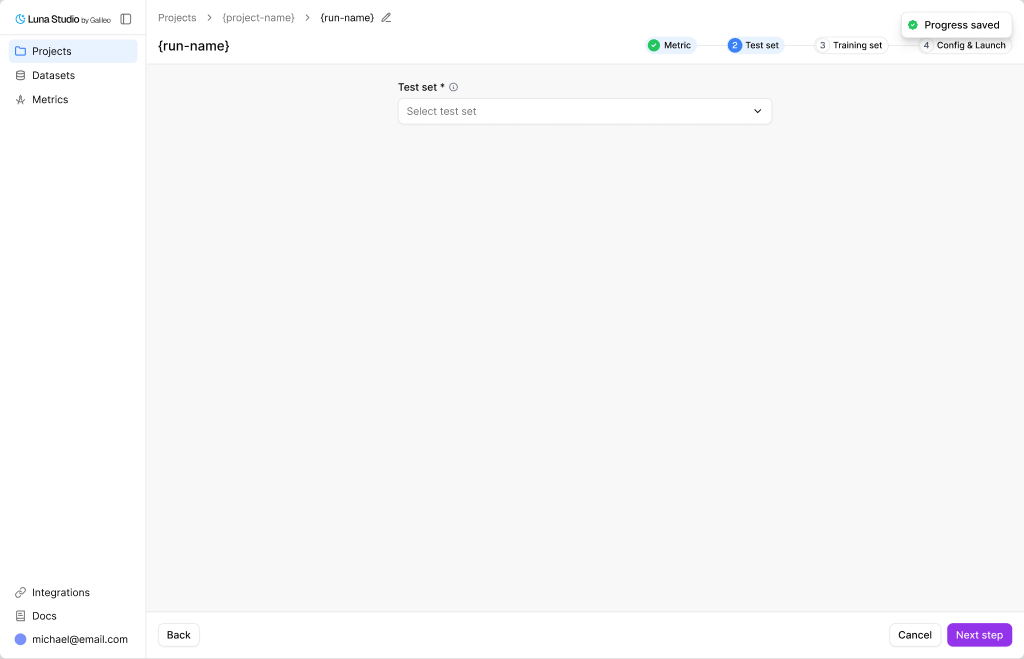
Step 2 — pick an existing test set or add a new one
Pick an existing test set
The Test set select shows test sets you’ve already added to this org. Each option includes a row count and source label, e.g.rag-eval-dataset-v2 — 320 rows · Uploaded.
Type into the select to filter by name.
Add a new test set
If you don’t have one yet, click the dropdown’s Add new test set action. The Add test set modal opens.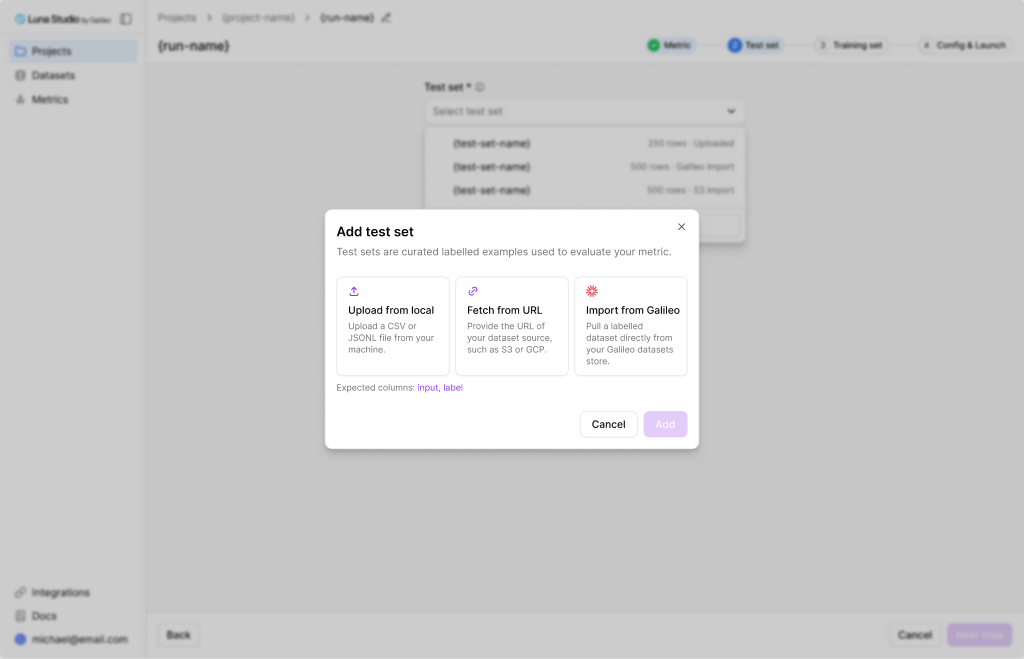
Add test set modal opened from Step 2 — same flow as the Datasets page
Upload from local
Drag-and-drop a
.csv or .jsonl file.Fetch from URL
Paste an
http://, https://, s3://, or gs:// URL.Import from Galileo
Browse datasets in your connected Galileo workspace.
Importing from Galileo requires an active Galileo integration. If one isn’t configured, Luna Studio prompts you to add it inline before the import panel appears.
Validation
Luna Studio runs validation on the test set to ensure it meets the required schema / format / content rules. If there are any validation errors, they will be highlighted (See example below).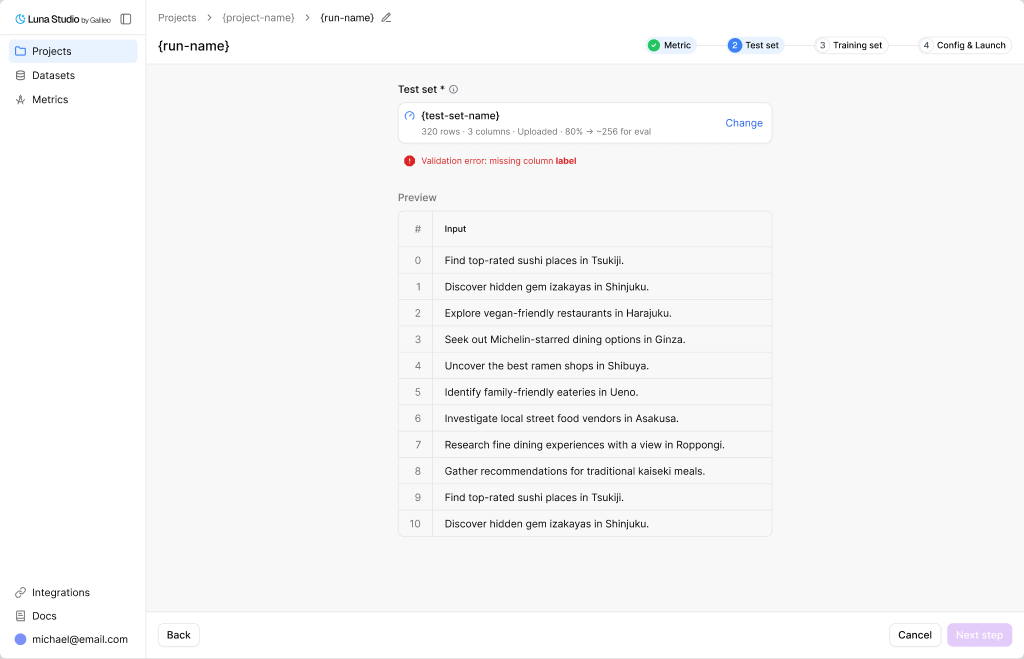
Step 2 with a validation error — the flow blocks Next until the schema is valid
Dataset preview
If validation completes, you should see a preview of the test set rows. The preview is paginated so you can inspect rows without leaving the run creation flow.Where to go next
Step 3 — Training set
Generate from the test set, or upload your own.
Add a dataset
Reference for all three dataset sources.