

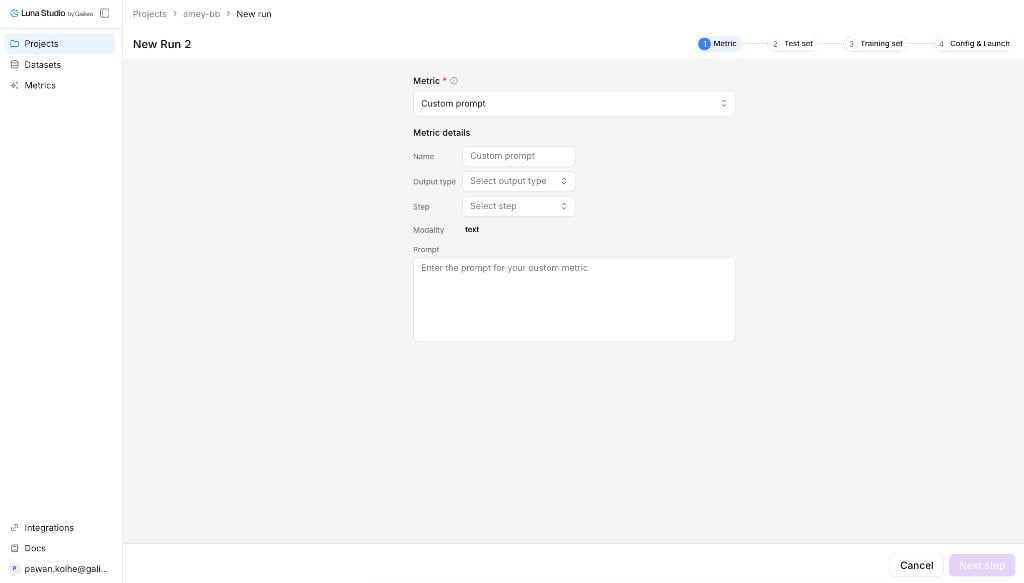
Custom metric, run creation flow — Metric step with Custom prompt selected
Open custom prompt mode
From Step 1 of the run creation flow, open the metric dropdown and click Use custom prompt.Fields
Output types in detail
Other Galileo output types are not trainable in Luna Studio yet. The output type also constrains what label values your test set can use during validation. See Test sets.
Steps in detail
The right step depends on what your metric needs to see. For “is the final answer toxic?” → LLM span or Trace. For “are retrieved chunks relevant?” → Retriever.
Input steps
Full trace and full session inputs require user-supplied training data; synthetic generation is disabled for those shapes.
Prompt-writing tips
- Be specific. Define exactly what counts as a positive vs negative result.
- Give examples. One or two short examples per outcome class is plenty.
- Constrain the output. End the prompt with something like “Respond with only
trueorfalse.” for Boolean metrics. - Avoid open scales. “Score 1–10” is harder for an LLM-judge to keep consistent than a binary or 3-class categorical.
Submit
Continue through the run creation flow. Luna Studio saves the metric definition with the run and fine-tunes it once you launch.Designing outside Luna Studio
Use the standalone Galileo metrics workflow when you want to design and test a metric outside of Luna Studio before bringing it into a run.Where to go next
Step 1: Metric (in the run creation flow)
Define a custom metric inside a new run.
Test sets
Schema rules and best practices for evaluation data.
Register a metric
Publish a fine-tuned metric to Galileo.